Gmail app on Android and iPhone: setting up your email
For the Gmail app on your phone or tablet. You need your email address and the password of your mailbox; everything else is below.
Note. This only works in the app on your phone or tablet. In Gmail on the computer (gmail.com) you can no longer fetch a mailbox from another provider since 2026; use our webmail or an email app there.
Add an address
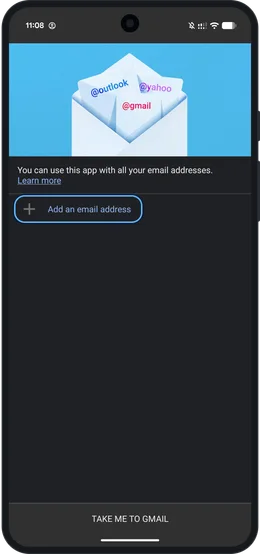
Open the Gmail app. If you are using the app for the first time, tap Add an email address. If you already have an account in the app, tap your profile picture at the top right and then Add another account.
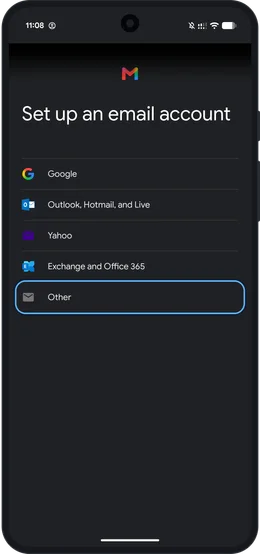
Choose Other
At the bottom choose Other. On an iPhone this is called Other (IMAP).
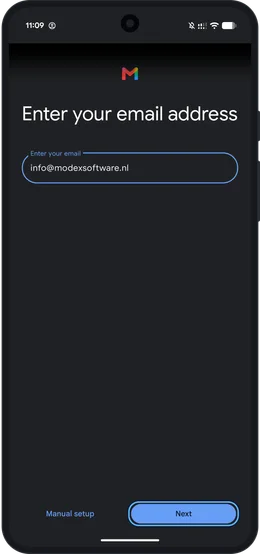
Enter your email address
Type your full email address and tap Next.
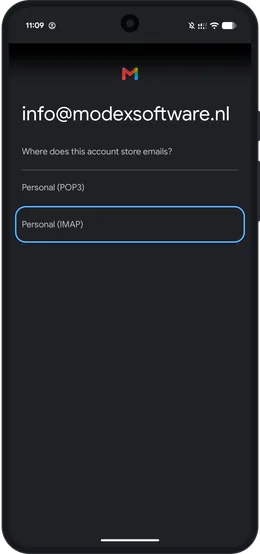
Choose IMAP
The app asks where the account keeps its email. Choose Personal (IMAP), not POP3.
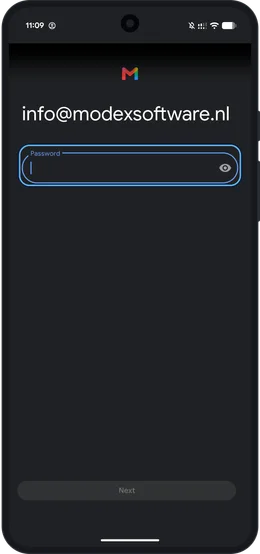
Enter your password
Type the password of your mailbox and tap Next.
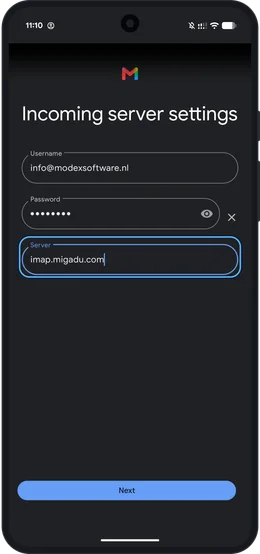
Incoming server
Username: your full email address. Your password is already filled in. For server enter imap.migadu.com. Tap Next; the app chooses the port and encryption itself.
Outgoing server
The next screen is the same, but for outgoing mail: again your full email address and your password, and for server smtp.migadu.com. Tap Next.
Done
Choose how often the app fetches email and give the account a name. Your mailbox is then under your profile picture.
The screenshots were made on an Android phone with the app in English. The blue ring shows where you tap or type; the address on the screens is an example.
All details at a glance
| Server | Port | Security | |
|---|---|---|---|
| Incoming (IMAP) | imap.migadu.com | 993 | SSL/TLS |
| Outgoing (SMTP) | smtp.migadu.com | 465 | SSL/TLS |
- Username: your full email address, for both incoming and outgoing.
- Password: the password of your mailbox. We don't know it; if you have lost it, we send you a link to choose a new one.
- Account type: IMAP. Then you see the same folders and messages on every device.
- Webmail: without setting anything up you can also read and send your email at webmail.modexsoftware.nl. Log in with your full email address and your password; leave the field for the verification code empty.
Buttons sometimes have slightly different names per version than here; the details you fill in are always the same. If it doesn't work, first check that your password is right by logging in to the webmail.
Another app or device? Back to all guides.
Stuck?
Then we'll help you further, you don't have to figure it out alone. You can always WhatsApp, call or email:
- Send a WhatsApp message to +31 6 49 14 60 60
- Call +31 6 49 14 60 60. If we don't answer, we call you back.
- Email info@modexsoftware.nl